Setting an alarm on your Apple Watch is easier than you might think—and it can make a big difference in managing your day smoothly. Imagine waking up right on time without fumbling for your phone or worrying about missing an important reminder.
Whether you want a quick morning alert or a gentle nudge throughout the day, your Apple Watch has you covered. In this guide, you’ll learn simple, step-by-step ways to set, customize, and control alarms directly from your wrist. Keep reading, and you’ll discover how to make your Apple Watch your perfect personal assistant when it comes to staying on schedule.
Alarms App Setup
Setting up alarms on your Apple Watch is simple. The Alarms app lets you create and manage alarms quickly. This guide explains how to use the app step-by-step.
Follow these easy steps to set an alarm that fits your schedule. You can also customize each alarm for better use.
Open Alarms App
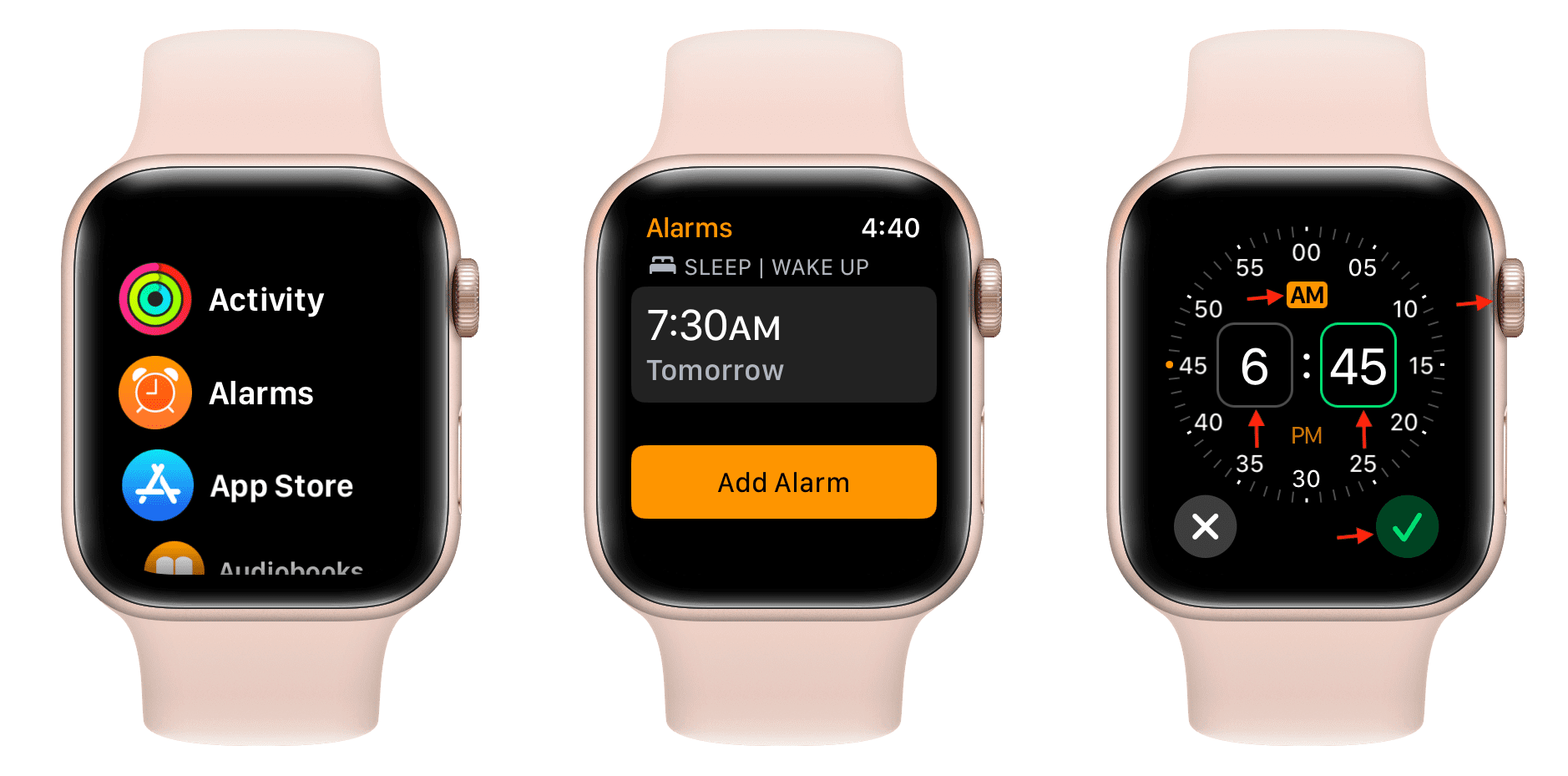
Press the Digital Crown to see all apps. Find and tap the Alarms app icon. The app opens to show your current alarms.
Add New Alarm
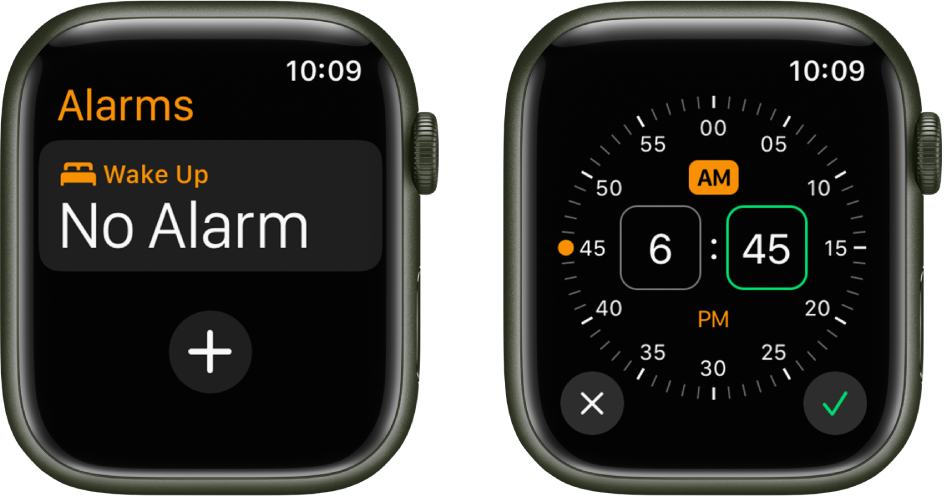
Tap the plus (+) button in the top right corner. This starts the process to add a new alarm.
Set Alarm Time
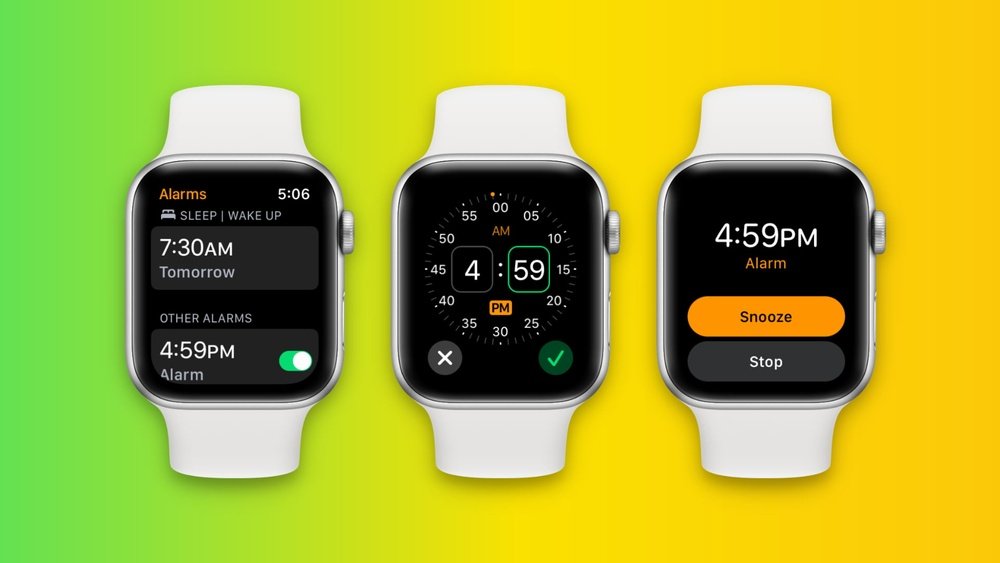
Use the Digital Crown to set the hour. Then scroll to set minutes and AM or PM. Adjust until the correct time appears.
Save Alarm
Tap the checkmark to save your alarm. Your new alarm appears in the list, ready to alert you.
Customize Alarm Settings
Tap the alarm to open settings. Change the label to name your alarm. Choose repeat days to set it for multiple days. Turn snooze on or off as needed.
Credit: www.cen.com.mx
Using Siri For Alarms
Using Siri to set alarms on your Apple Watch is simple and fast. Siri listens to your voice and sets alarms without needing to tap the screen. This hands-free method saves time and effort.
Just speak your command, and Siri takes care of the rest. It works well whether your hands are busy or you want a quick alarm setup. Learning how to activate Siri and use voice commands can improve your Apple Watch experience.
Activate Siri
To activate Siri, press and hold the Digital Crown on your Apple Watch. Wait for the beep or the Siri animation on the screen.
You can also raise your wrist and say “Hey Siri” aloud. Make sure this feature is turned on in your watch settings. Siri is ready to listen as soon as you activate it.
Voice Commands For Alarms
Say “Set an alarm for 7 AM” to create a new alarm quickly. Siri confirms the time and saves the alarm immediately.
Try commands like “Change my 7 AM alarm to 8 AM” or “Delete my 7 AM alarm.” Siri understands simple phrases to manage your alarms.
You can also ask “What alarms do I have?” to hear your current alarm list. Using voice commands makes alarm control easy and quick.
Managing Alarm Settings
Managing alarm settings on your Apple Watch lets you control how and when alarms alert you. Adjust these settings to fit your daily routine. Simple changes can make your alarms more effective and less annoying.
Explore options like turning alarms on or off, setting repeat schedules, adding labels, and enabling snooze. Each feature helps you customize your experience for better time management.
Turn Alarms On Or Off
Open the Alarms app on your Apple Watch. You will see a list of your alarms. Tap the switch next to each alarm to turn it on or off. When the switch is green, the alarm is active. When gray, the alarm is off. This lets you quickly control which alarms are running without deleting them.
Repeat And Label Options
Tap an alarm to edit it. Scroll to the “Repeat” option to choose the days for the alarm. Select the days you want it to ring. Next, tap “Label” to add a name to your alarm. This helps you remember why you set it. For example, “Morning Workout” or “Meeting Reminder.” These options make alarms more useful and personal.
Enable Or Disable Snooze
In the alarm settings, find the “Snooze” option. Toggle it on to allow snoozing when the alarm sounds. This lets you get a few more minutes of rest. Toggle it off to make the alarm ring until you stop it. Choose the setting that fits your waking style best.
Credit: www.liftingitalia.com
Alarm Notifications
Alarm notifications on the Apple Watch keep you punctual without needing your phone. These alerts ensure you never miss important times. Notifications use sounds and vibrations to catch your attention effectively. You can customize these alerts to fit your preferences and daily routine.
Understanding how alarm notifications work helps you use your Apple Watch better. It also improves your experience by making sure alarms are noticeable yet not annoying. Let’s explore the key features of alarm notifications on your Apple Watch.
Sound And Vibration Alerts
The Apple Watch uses both sound and vibration to notify you of alarms. Sounds play through the watch’s speaker. Vibrations come from the haptic engine on your wrist. This combination ensures you feel the alarm even in noisy places or when the watch is silent.
You can adjust sound volume in the Settings app under Sounds & Haptics. Vibration intensity can also be changed there. If you prefer a silent alarm, increase vibration strength and lower sound volume. This is helpful in meetings or quiet environments.
Mirroring Iphone Alarms
Alarms set on your iPhone do not ring on the Apple Watch by default. You must enable alarm mirroring in the Watch app on your iPhone. This setting sends iPhone alarm alerts to your Apple Watch as well.
Mirroring helps if you want to receive all alarms on your wrist, especially when your phone is not nearby. To turn it on, open the Watch app, tap Clock, then toggle on Mirror iPhone Alerts. Your Apple Watch will then notify you of iPhone alarms automatically.
Responding To Alarms
Responding to alarms on your Apple Watch is simple and quick. The watch notifies you with sound and vibration. You have options to either snooze the alarm or stop it completely. Each option helps you manage your time effectively.
Knowing how to respond to alarms can improve your daily routine. It keeps you on track without extra hassle. Below are clear steps to snooze or stop an alarm on your Apple Watch.
Snooze An Alarm
When the alarm sounds, a screen appears with options. Tap the “Snooze” button to pause the alarm temporarily. The alarm will ring again after nine minutes. This gives you a short break before the alert returns. You can snooze multiple times if needed. To stop snoozing, choose the stop option instead.
Stop An Alarm
To stop the alarm, tap the “Stop” button on the screen. The alarm will turn off and not ring again. This action confirms you have woken up or completed your task. You can also press the Digital Crown or side button to stop the alarm. Stopping the alarm prevents further interruptions. Always stop alarms to avoid missing important reminders.
Troubleshooting Alarms
Setting alarms on your Apple Watch helps you stay on schedule. Sometimes alarms fail to ring as expected. Troubleshooting these issues ensures your alarm works perfectly every time. This guide explains common problems and easy fixes for Apple Watch alarms.
Why Alarms Might Not Ring
Alarms may not ring due to muted sounds or Do Not Disturb mode. If your watch is in silent mode, alarms will vibrate only. Low volume or unpaired Bluetooth devices can stop alarm sounds. Software glitches or outdated watchOS might also cause alarm issues.
Fixing Common Alarm Issues
Check your watch’s volume and turn off silent mode. Make sure Do Not Disturb or Focus mode is disabled during alarm times. Restart your Apple Watch to clear minor bugs. Update to the latest watchOS for improved alarm performance. Delete and reset alarms if they still do not work.
Credit: alloy-valves.com
Frequently Asked Questions
How Do I Set My Alarm On My Apple Watch?
Open the Alarms app on your Apple Watch. Tap the plus (+) icon, set the time with the Digital Crown, and tap the checkmark to save. Alternatively, say “Hey Siri, set an alarm for [time]. ” Customize options by tapping the alarm in the list.
How To Set Alarm In Watch?
Open the Alarms app on your watch, tap the plus (+) icon, set the time using the Digital Crown, and tap the checkmark to save. Alternatively, say “Hey Siri, set an alarm for [time]. ” Toggle alarms on or off by tapping the switch next to each alarm.
Why Am I Not Getting Alarms On My Apple Watch?
Alarms may not ring if you set them on your iPhone without enabling mirroring. Set alarms directly on your Apple Watch for alerts. Check volume and Do Not Disturb mode. Ensure your watch isn’t on silent or Theater mode. Restart your watch if problems persist.
Can I Use An Apple Watch As An Alarm?
Yes, you can use an Apple Watch as an alarm. Open the Alarms app, tap “+”, set the time, and save. Siri also sets alarms quickly. Customize repeat, labels, and snooze. Turn alarms on or off by toggling the switch in the app.
Conclusion
Setting an alarm on your Apple Watch is quick and simple. Use the Alarms app or ask Siri to create alarms easily. Customize your alarm time, repeat days, and snooze options to fit your needs. This helps you stay on schedule without hassle.
Regular practice makes using your watch even easier. Enjoy the convenience of timely reminders right on your wrist.