Setting an alarm on your Apple Watch is easier than you might think—and it can make a big difference in managing your day. Whether you want a gentle reminder to wake up, take a break, or stay on schedule, your Apple Watch has you covered.
In this guide, you’ll learn simple, step-by-step instructions to set up alarms quickly, either using the Alarms app or just your voice with Siri. Ready to take full control of your time and never miss a beat? Keep reading to discover how to make your Apple Watch work smarter for you.
Credit: www.centromedicoloira.com
Alarms App Setup
Setting up alarms on your Apple Watch is simple and helps you stay on schedule. The built-in Alarms app offers an easy way to add, manage, and toggle alarms directly from your wrist. This guide walks you through each step to set your alarms quickly.
Open Alarms App
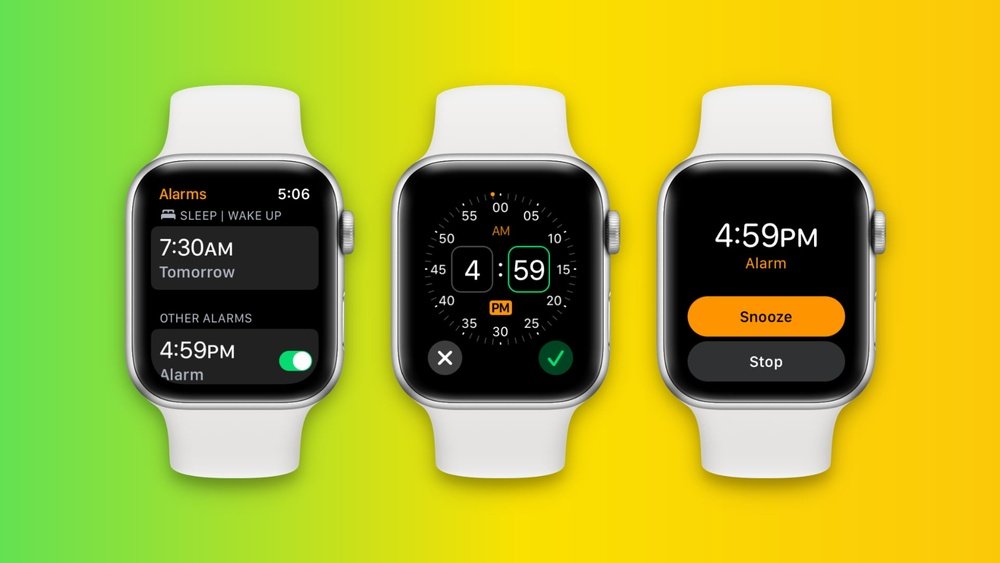
Press the Digital Crown to open the app screen. Look for the orange Alarms app icon. Tap the icon to open the Alarms app and view existing alarms.
Add New Alarm
Scroll to the bottom of the alarms list. Tap the plus (+) button to start adding a new alarm. This opens the time-setting screen.
Set Alarm Time
Tap the hour or minute digits. Rotate the Digital Crown to choose the correct hour. Repeat for minutes and set AM or PM if needed.
Save Alarm
Once the time is set, tap the checkmark (✓) button. This saves the alarm to your list. You can now see it alongside other alarms.
Toggle Alarm On Or Off
To activate or deactivate an alarm, tap the switch beside it. Green means the alarm is on, gray means it is off. Toggle as needed throughout the day.
Customize Alarm Settings
Customizing alarm settings on your Apple Watch helps tailor alerts to fit your daily needs. You can control how often alarms ring, label them for clarity, and adjust snooze time. These options make your alarms more useful and less disruptive.
Set Repeat Options
Open your alarm and find the repeat setting. Choose days of the week for the alarm to ring. This is perfect for routines, like weekdays only or weekends. It saves time by avoiding daily reset of alarms.
Add Alarm Label
Label your alarm to know its purpose at a glance. Tap the alarm, then select the label option. Enter a short name, such as “Workout” or “Meeting.” This helps you prepare better when the alarm sounds.
Adjust Snooze Duration
Change the snooze time to fit your preferences. Tap the alarm, then find snooze options. Pick how many minutes to delay the alarm when snoozed. This control helps balance rest and punctuality.
Using Siri For Alarms
Using Siri to set alarms on your Apple Watch makes the process quick and hands-free. Siri listens to your commands and sets alarms instantly without needing to open apps. This feature is handy when you are busy or on the go.
You can create, edit, or delete alarms simply by speaking to Siri. It understands natural language, so you do not need to memorize commands. Just talk to your watch, and Siri will take care of the rest.
Activate Siri
To start Siri on your Apple Watch, raise your wrist and say, “Hey Siri.” You can also press and hold the Digital Crown button until Siri appears. Both methods activate Siri quickly and allow you to give voice commands.
Voice Command Examples
Try these commands to manage your alarms:
- “Set an alarm for 7 AM.”
- “Wake me up in 30 minutes.”
- “Set a repeating alarm for weekdays at 6:30 AM.”
- “Delete my 8 AM alarm.”
Siri will confirm your command and create or change the alarm accordingly.
Edit Alarm Via Siri
To change an existing alarm, say, “Change my 7 AM alarm to 7:30 AM.” Siri updates the alarm time without opening the app. You can also ask, “Turn off my 6 AM alarm” or “What alarms do I have set?” to manage alarms easily.

Credit: vixencomposites.com
Managing Alarms
Managing alarms on your Apple Watch keeps your daily schedule organized. The Alarms app lets you control all your alarms easily. You can edit, delete, or turn off alarms with a few taps.
These simple actions help you stay on time and adjust alarms as needed. Knowing how to manage alarms improves your Apple Watch experience.
Edit Existing Alarms
Open the Alarms app on your Apple Watch. Scroll to the alarm you want to change. Tap the alarm to open its settings. Use the Digital Crown to adjust the time. You can also change options like repeat days or label. After editing, tap the checkmark to save your changes.
Delete Alarms
Launch the Alarms app on your watch. Find the alarm you want to remove. Swipe left on the alarm to reveal the Delete button. Tap Delete to remove the alarm from your list. This helps keep your alarms list clear and organized.
Turn Off Alarms
To turn off an alarm temporarily, open the Alarms app. Locate the alarm and tap the switch next to it. The switch will turn gray, showing the alarm is off. You can turn it back on anytime by tapping the switch again.
Alarms Without Iphone
Apple Watch allows you to set alarms even without your iPhone nearby. This feature is useful during workouts, travels, or times when you leave your phone behind. You can manage alarms directly on the watch, making it a standalone device for time alerts. It works well with or without internet connection, ensuring you never miss important reminders.
Setting Alarms Offline
To set an alarm without your iPhone, open the Alarms app on your Apple Watch. Tap the plus (+) icon to add a new alarm. Use the Digital Crown to select the hour and minutes. Confirm AM or PM if needed. Tap the checkmark to save your alarm. The watch will alert you at the set time even if your iPhone is off or out of range.
You can also use Siri by raising your wrist and saying, “Set an alarm for 7 AM.” Siri will create the alarm instantly on your Apple Watch. This works without internet or your iPhone nearby. The watch stores alarms locally and activates them independently.
Limitations And Features
Alarms set on Apple Watch work without iPhone, but some limits exist. You cannot sync alarms between watch and phone when offline. Changes made on one device do not update the other until reconnected. The watch alarm sound is fixed and cannot use custom tones.
Snooze is available, allowing you to delay the alarm. Repeating alarms can be set for specific days. The watch vibrates gently to wake you without disturbing others. This feature helps during quiet or shared spaces.
Troubleshooting Alarms
Alarms on Apple Watch are helpful for daily reminders and waking up on time. Sometimes, alarms may not work as expected. Troubleshooting alarms ensures they ring correctly and sync well with your iPhone. Follow these tips to fix common alarm issues and keep your schedule on track.
Alarm Not Ringing
Check if your Apple Watch is in silent or Do Not Disturb mode. These modes stop the alarm sound. Also, verify the volume level is high enough to hear the alarm. Restart your watch to clear temporary glitches. Ensure the alarm time is set correctly, including AM or PM. Try setting a test alarm for a few minutes ahead to confirm it rings.
Sync Issues
Alarms should sync between your Apple Watch and iPhone automatically. If syncing fails, restart both devices to refresh the connection. Make sure Bluetooth is enabled on both devices. Keep your Apple Watch and iPhone close to each other during sync. Update to the latest software version on both devices. This often fixes bugs causing sync problems.
Reset Alarms
Deleting and recreating alarms can fix persistent issues. Open the Alarms app, swipe left on the alarm, and tap Delete. Create a new alarm by tapping the plus (+) icon and setting the correct time. Resetting alarms clears errors and refreshes settings. If problems continue, try unpairing and pairing your Apple Watch with your iPhone again.
Credit: alloy-valves.com
Frequently Asked Questions
How Do I Set My Alarm On My Apple Watch?
Open the Alarms app on your Apple Watch. Tap the plus (+) icon. Rotate the Digital Crown to set time. Tap the checkmark to save. Use Siri by saying, “Set an alarm for [time]” to set alarms hands-free.
Can You Set An Alarm Just On An Apple Watch?
Yes, you can set an alarm directly on an Apple Watch using the Alarms app or Siri voice commands.
How To Set Alarm In Watch?
Open the Alarms app on your watch, tap the plus (+) icon, set the time using the crown or buttons, then save it. Use voice commands like “Set an alarm for [time]” with Siri or Google Assistant for quick setup.
Customize repeat, label, or snooze if needed.
Can You Set An Alarm On Your Apple Watch Without Your Phone?
Yes, you can set an alarm directly on your Apple Watch without your iPhone. Use the Alarms app or Siri to create and customize alarms anytime.
Conclusion
Setting an alarm on your Apple Watch is quick and simple. Use the Alarms app or just ask Siri to help. Customize your alarm time, label, and repeat settings for better control. Managing alarms keeps your day on track and stress-free.
Try these steps today and stay punctual with ease. Your Apple Watch makes waking up or reminders effortless and reliable.