You rely on your Apple Watch every day—tracking workouts, managing notifications, and keeping your health data at your fingertips. But what happens if you lose it, upgrade to a new model, or need to reset it?
Without a proper backup, you risk losing all your important settings and data. That’s why knowing how to back up your Apple Watch is essential. In this guide, you’ll discover simple, step-by-step ways to protect your watch’s information, making sure you never lose a beat.
Keep reading to learn how to secure your Apple Watch backup quickly and easily.

Credit: www.spec-school.org
Backup Options
Backing up your Apple Watch is essential to protect your data and settings. There are different ways to create backups, each with its own benefits. Understanding these options helps you keep your information safe and easily recoverable.
Automatic Backups Via Iphone
Your Apple Watch backs up automatically to your paired iPhone. This happens when you unpair the watch or when it syncs regularly. The backup includes app data, settings, and preferences but excludes your Apple Watch passcode.
The iPhone stores the backup securely within its own system backup. You cannot access it directly on the iPhone, but it is ready to restore when setting up a new Apple Watch. This automatic backup makes the process simple and worry-free.
Manual Backup Methods
Manual backups are less direct but possible. Unpairing your Apple Watch from the iPhone triggers a fresh backup. This is the most reliable manual method to save your data.
To do this, open the Watch app on your iPhone. Tap your watch, then tap the “i” icon. Choose “Unpair Apple Watch.” This saves the latest data before disconnecting.
Another manual method is to back up your iPhone regularly with iCloud or iTunes. Since your watch backup is part of the iPhone’s backup, this helps secure your watch data indirectly.
Check Backup Status
Checking your Apple Watch backup status helps you confirm your data is safe. Backups happen automatically when your watch pairs with your iPhone. Knowing the last backup date and storage use keeps your information secure. It also helps you plan when to create a new backup.
Viewing Backup Details On Iphone
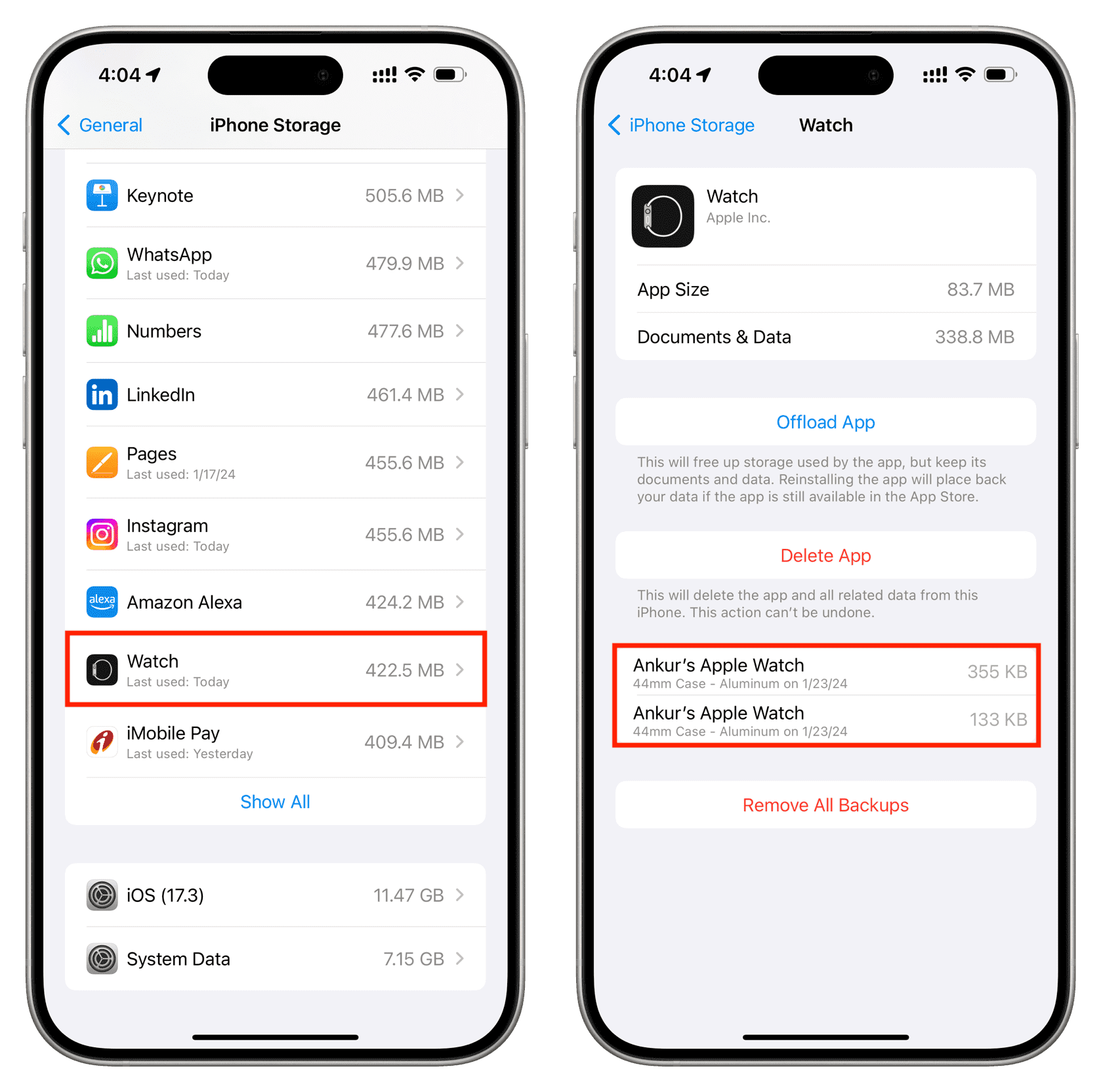
Open the Settings app on your iPhone. Scroll down and tap General. Next, select iPhone Storage. Find the Watch app in the list and tap it. Here, you see details about your Apple Watch backups. This section shows the last backup date and time. You can also view the backup size. This information lets you know if your watch is backed up recently.
Storage Usage For Watch Backups
Your Apple Watch backups use storage on your iPhone or iCloud. In iPhone Storage, the Watch app shows how much space backups take. Large backups may slow your device or limit space for other data. Delete old backups if you need more space. Manage iCloud storage by visiting Settings > [your name] > iCloud > Manage Storage. This helps keep backups efficient and your devices running smoothly.
Prepare For Backup
Preparing your devices before backing up your Apple Watch ensures a smooth and complete process. Taking time to update both your iPhone and Apple Watch helps avoid errors during backup. Keeping the devices close together improves connection stability and speeds up data transfer.
This section explains how to prepare effectively for your Apple Watch backup.
Update Ios And Watchos
Check that your iPhone runs the latest iOS version. Open Settings, tap General, then Software Update. Install any available updates.
Next, update your Apple Watch’s watchOS. On your watch, open Settings, tap General, then Software Update. Install updates if needed.
New updates fix bugs and improve backup reliability. Keeping both devices updated reduces backup issues.
Keep Devices Close
Keep your Apple Watch and iPhone close during backup. This ensures a strong Bluetooth connection.
Close proximity helps data transfer faster and avoids interruptions. Place both devices on a flat surface near each other.
Do not move or turn off devices while backing up. This keeps the process smooth and complete.
Unpair Old Apple Watch
Unpairing your old Apple Watch is a crucial step before setting up a new one. This process safely disconnects your watch from your iPhone. It also creates a backup of your watch data automatically. This backup helps restore settings, apps, and health data on your new Apple Watch. Taking time to unpair properly avoids data loss and saves setup time later.
Creating A Final Backup
Unpairing the Apple Watch triggers an automatic backup. Your iPhone saves the watch data to iCloud or local storage. This backup includes app data, settings, and health information. Make sure your iPhone is nearby and unlocked during unpairing. The process may take a few minutes depending on data size. Do not interrupt it to ensure a complete backup. This step is essential to keep your data safe.
Steps To Unpair
- Open the Watch app on your iPhone.
- Tap on your Apple Watch at the top of the screen.
- Tap the “i” icon next to the watch you want to unpair.
- Select “Unpair Apple Watch.”
- Confirm the unpair action by entering your Apple ID password.
- Wait for the unpairing and backup process to finish.
- After unpairing, your Apple Watch will reset to factory settings.
Following these steps ensures your Apple Watch data is safely backed up. You can then pair your new watch without losing any information. Unpairing also frees your old watch to be paired with another device or sold.
Pair New Apple Watch
Pairing a new Apple Watch is the key step to start using your device. It connects the watch to your iPhone, allowing data transfer and backup restoration. The process is simple and fast. Follow these steps to pair your new Apple Watch properly.
Start Pairing Process
Keep your new Apple Watch close to your iPhone. The iPhone should be unlocked and have Bluetooth turned on. A pairing screen will appear automatically on your iPhone. If not, open the Watch app on your iPhone and tap “Start Pairing.” This begins the connection between your devices.
Scan And Connect
An animated pattern appears on your Apple Watch. Use your iPhone’s camera to scan this pattern inside the Watch app. This step links the two devices securely. If scanning does not work, tap “Pair Apple Watch Manually” and follow the on-screen instructions. This ensures your devices connect without trouble.
Choose Setup Method
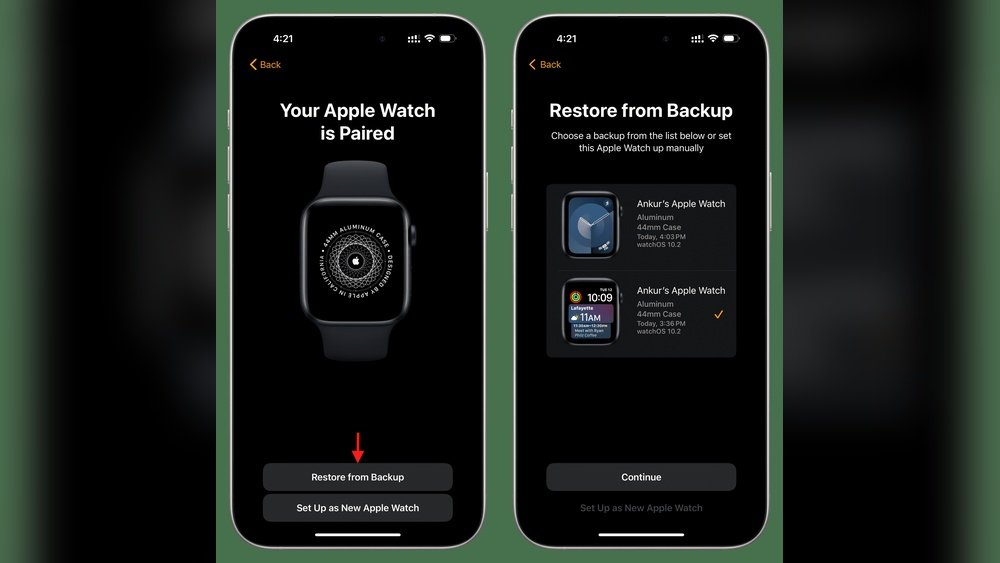
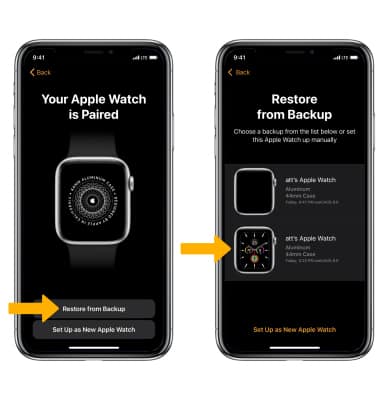
After pairing, choose how to set up your new watch. Select “Set Up as New Apple Watch” to start fresh. Or choose “Restore from Backup” to transfer apps, settings, and data from your old Apple Watch. Restoring from backup saves time and keeps your information intact. Follow the prompts to finish setup and sync your data.
Restore From Backup
Restoring your Apple Watch from a backup saves time and keeps your data intact. It helps you move settings, apps, and health data to a new device quickly. Follow these simple steps to restore your watch from a backup smoothly.
Select Backup During Setup
Start by turning on your new Apple Watch. Keep it close to your iPhone. When the pairing screen appears, choose “Restore from Backup.” Select the latest backup from your old watch. This restores most of your data and settings.
Sign In And Configure Settings
Next, sign in with your Apple ID. This connects your watch to your iCloud account. Follow the on-screen instructions to set up features like Siri and Apple Pay. You can also create a passcode for security during this step.
Syncing Data To New Watch
Your Apple Watch starts syncing data from the backup. This process may take a few minutes. Keep your iPhone and watch near each other. Wait until all apps and data finish transferring before using your watch.
Reset Apple Watch
Resetting your Apple Watch can be a useful step before selling, troubleshooting, or starting fresh. It removes all personal data and settings, returning the watch to factory defaults. Knowing how and when to reset is important to avoid data loss or complications.
Erase Content And Settings
To erase your Apple Watch, open the Settings app on the watch. Tap General, then Reset. Choose Erase All Content and Settings. This deletes all apps, data, and settings from the watch.
You may need to enter your Apple ID password to disable Activation Lock. The process can take a few minutes. Afterward, the watch restarts as new, ready to pair with an iPhone.
When To Reset For Restore
Resetting is helpful before restoring from a backup or pairing with a new iPhone. It clears old data and avoids conflicts during setup. Reset also fixes some software glitches causing poor performance or errors.
Do not reset unless you have a recent backup. Your Apple Watch automatically backs up data to the paired iPhone daily. Check the iPhone’s Watch app to confirm backup status before resetting.
Credit: reciclajesostenibleeuropa.com
Transfer Data Without Reset
Transferring data from your Apple Watch without resetting keeps all settings intact. This method saves time and keeps your personal information safe. It works well when switching devices or updating software. No need to start fresh or lose your preferences.
Apple offers built-in features to help move data easily. Also, some alternative methods let you transfer data without wiping your watch. Both ways keep your apps, health data, and settings ready to use.
Using Watch App Features
The Watch app on your iPhone makes data transfer simple. Keep your Apple Watch and iPhone close together. Open the Watch app and select your watch from the list.
Tap the “i” icon next to your watch. Choose “Unpair Apple Watch” to create an automatic backup. This saves your data to your iPhone securely.
Next, start pairing your new or updated watch. Follow the prompts and select “Restore from Backup.” Pick the most recent backup to transfer your data. The process copies settings, apps, and health info easily.
This method avoids resetting your watch and keeps your setup intact. It works smoothly when your devices run the latest iOS and watchOS versions.
Alternative Methods
Other options exist for transferring data without reset. One way is using iCloud to sync important information. Ensure your iPhone and watch connect to Wi-Fi and enable iCloud backup.
Health and activity data sync automatically via iCloud. Some app data also moves without manual steps. This method requires patience as syncing takes time.
You can also use third-party apps designed to copy data between devices. Check app reviews and privacy policies first. These apps may offer extra transfer options but use caution.
Manual methods like exporting health data or app settings may help, but they need more effort. They work best for specific data types rather than full transfers.
Troubleshooting Backup Issues
Backing up your Apple Watch ensures your data stays safe. Sometimes, the backup process does not go as planned. Troubleshooting backup issues helps fix common problems fast. This section covers typical issues and tips for smooth backups.
Common Problems
One frequent issue is the Apple Watch not syncing with the iPhone. This can stop the backup process. Another problem is low storage space on the iPhone or iCloud. Insufficient space blocks new backups from saving. Network issues may cause slow or failed backups. Sometimes the Watch app crashes or freezes during backup. Outdated software on the iPhone or Apple Watch can also cause errors.
Tips For Successful Backup
Keep your Apple Watch and iPhone close during backup. Make sure both devices have the latest software updates installed. Check available storage on your iPhone and iCloud before starting. Restart both devices to clear temporary bugs. Connect to a strong and stable Wi-Fi network. Open the Watch app on the iPhone to start the backup manually. Avoid heavy app use or phone calls during backup. If problems continue, unpair and re-pair your Apple Watch to force a new backup.
Credit: vanganzewinkelnatuursteen.com
Frequently Asked Questions
How To Check If Your Apple Watch Is Backed Up?
Open your paired iPhone’s Settings, tap General, then iPhone Storage. Select Watch to view backup dates and storage details.
How Do I Transfer Everything From My Old Apple Watch To My New Apple Watch?
Keep your new Apple Watch near your iPhone. Open the Watch app, tap “Start Pairing,” and select “Restore from Backup. ” Choose your old watch’s backup, then follow prompts to transfer apps, settings, and data. Ensure both devices run the latest iOS and watchOS for a smooth transfer.
Can I Back Up My Apple Watch Without A Phone?
You cannot back up your Apple Watch without an iPhone. The watch automatically backs up data to the paired iPhone.
Does Unpairing An Apple Watch Create A Backup?
Unpairing an Apple Watch automatically creates a backup on your paired iPhone. This backup saves your settings and data for easy restoration.
Conclusion
Backing up your Apple Watch keeps your data safe and secure. Regular backups help avoid losing important settings and health info. Use your paired iPhone to manage backups easily. Always keep your devices updated for smooth backup and restore. Following simple steps ensures your watch data stays protected.
Take a few minutes to back up today. Peace of mind is worth it.